
Schrödinger’s software is something I’ve wrangled for molecule screening. Here are my notes on set up, management, and general clues I’ve accumulated.
No warranties express or implied.
License manager
We’re running on cloud hardware, using the FlexNet license manager.
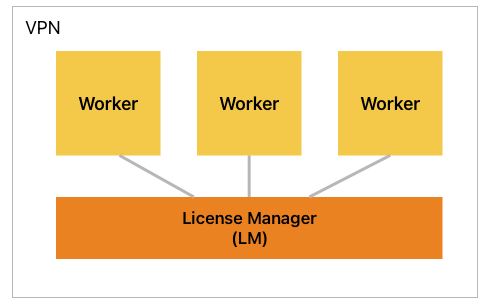
For the license manager node, you need a fixed MAC address. Under AWS, the elastic network interface MAC is fixed, and persists across reboots/resizes, so you’re good. I believe Schrödinger has other licensing modes, but this is the one we were using.
The hardware requirements are minimal: a t2.micro will do, 30G disk.
The LM software install is straightforward. You get the commands lmutil, lictest, and licadmin.
You need to have a license key (a .lic file) and the command machid (part of Schrödinger’s software) will give you your MAC address for licensing purposes.
Put the license file in /opt/flexlm/schrodinger/licenses and then check it with licadmin CHECK.
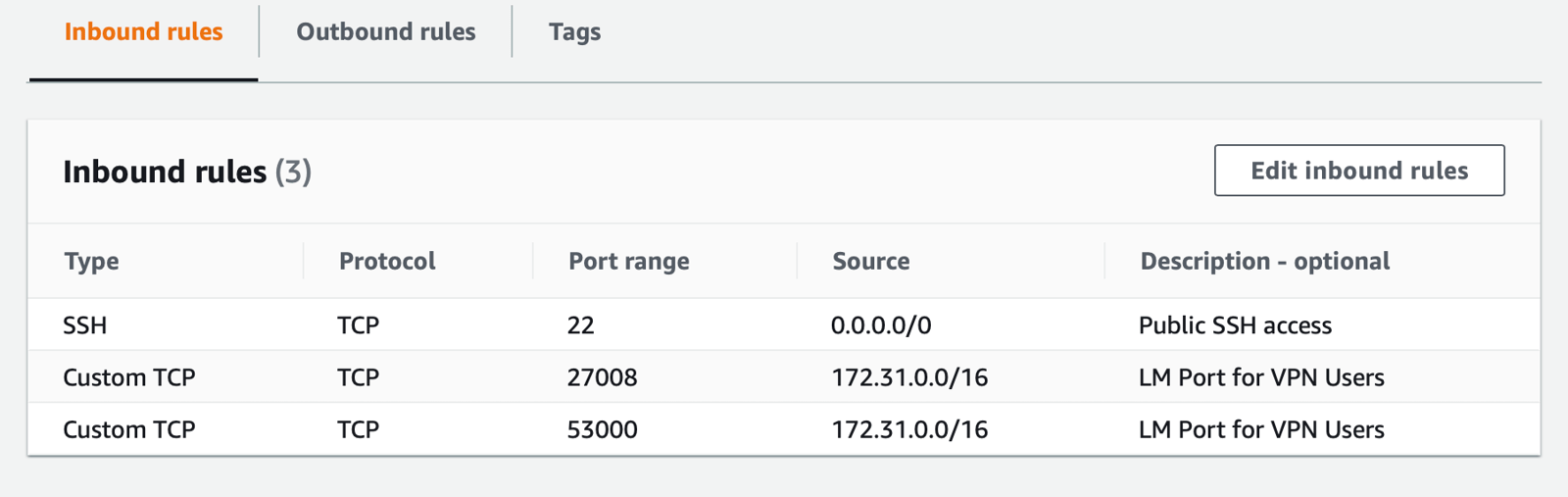
The LM uses ports 27008 and 53000. Inside the network, that’s just going to work. If you have users connecting in, do not expose license ports over the public internet: set up the full VPN, and expose ports on that interface.
For workers or users to talk via friendly DNS names, you’ll need to set up a Route 53 private domain, and map the LM host IP to whatever name you want to give it. That’s so the DNS resolves inside your VPN.
Troubleshooting steps:
-
netstat -anp | grep 27008to see if anything is running on that port. tail /var/log/flexlm/schrodinger/lmgrd.loglmutil lmstat- Check your license manager actually knows its own host name, for example via
/etc/hostsor/etc/hostname.
You’ll want the service to start on boot:
$ more /etc/systemd/system/licadmin.service
[Unit]
Description=FlexLM license server daemon
After=network-online.target

[Service]
Type=simple
User=flexlm
WorkingDirectory=/opt/flexlm/schrodinger
ExecStart=/opt/flexlm/schrodinger/lmgrd -z -reuseaddr -c /opt/flexlm/schrodinger/licenses -l +/var/log/flexlm/schrodinger/lmgrd.log
SuccessExitStatus=15
Restart=always
RestartSec=30

[Install]
WantedBy=multi-user.target

$ systemctl start licadmin
$ systemctl enable licadmin
When you get a new or updated license key, drop it in the licenses folder and systemctl restart licadmin folllowed by a lmutil lmstat just to check.
Finally, lmutil offer a bunch of commands such as lmutil lmdown (that one to stop the license server).
Schrödinger suite install
It’s an untar and run the ./INSTALL script for interactive install. For unattended install it’s more like:
sudo ./INSTALL -d . -k /usr/tmp -s /opt/schrodinger -t /opt/schrodinger/thirdparty -b *.gz
Add /opt/schrodinger to your PATH and the set the license manager:
sudo $SCHRODINGER/licadmin INSTALL -c 27008@lm.youdomain.com
That will install a file in /opt/schrodinger/licenses/ but check with: licadmin CHECK.
You’re good to go
You can now kick off jobs, and those jobs will obtain licenses from the manager node. On that machine, you can use lmadmin stat to find out what licenses are “out” (in use).
Job management
The Schrödinger Suite works in terms of job. Running a command, starts a job. You have tools to manage jobs, primarily via an ID assigned to them.
-
jobcontrol -listto see jobs -
jobcontrol -list -c foo-0-60d60c3cto see status of specific job (and have percentage complete) and add-showfor more. -
jobcontrol -killnooutput ip-172-31-7-17-0-60e41838to terminate a job.
If you’re juggling work against license keys limits, there are some command flags to help:
-
-HOST:nwill allow you to run n jobs simultaneously. It’s sort of stating the CPU count you want to use. -
-WAITat the end of a command will wait for other jobs to finish before starting. For example, in a shell script you could have a bunch of commands all ending in-WAITand that’ll ensure the jobs are queued and licenses not exhausted immediately.
A combination of HOSTS and WAIT give you a cheap and cheerful basic queuing system. A “proper” solution would be Slurm or PBS.
If jobs go wrong
- Find the job that failed:
jobcontrol -list all $SCHRODINGER/utilities/postmortem -autoreplace put-job-id-here- Attach output ZIP file to the ticket you raised with support.
AWS disk resizing
Not directly Schrödinger related, but sometimes you have a worker and you need more storage. You can resize a volume from AWS Console. Then on the instance, trigger the change:
$ lsblk
NAME          MAJ:MIN RM  SIZE RO TYPE MOUNTPOINT
nvme1n1       259:0    0 69.9G  0 disk
nvme0n1       259:1    0  100G  0 disk
├─nvme0n1p1   259:2    0   30G  0 part /
└─nvme0n1p128 259:3    0    1M  0 part

$ sudo growpart /dev/nvme0n1 1
$ sudo xfs_growfs -d /
Enjoy!